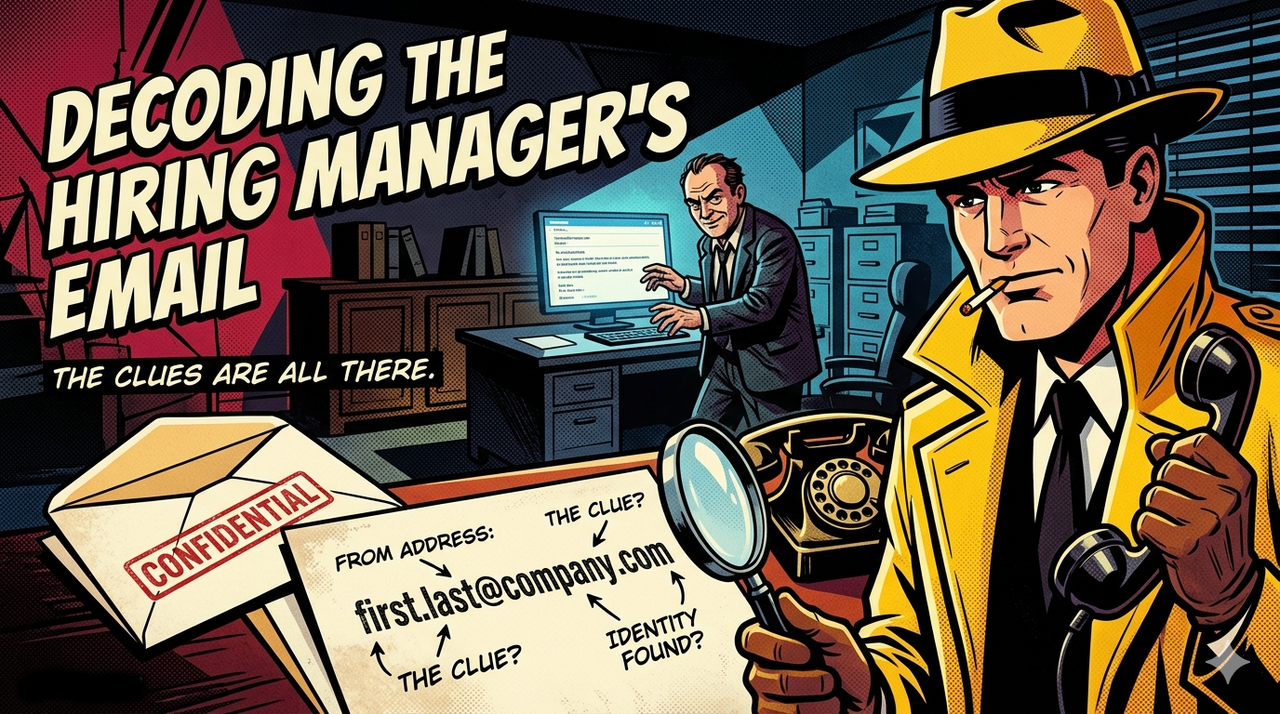
You've read the case for emailing the hiring manager directly after you apply. There's a problem: the job posting doesn't name anyone, and even if it did, the email isn't listed. This is the playbook for solving both — in about five minutes, using only free tools.
TL;DR
- If the posting lists a recruiter or hiring manager on LinkedIn, start there.
- If not, search LinkedIn/Google for the role one level above the one you're applying to — that's almost always the hiring manager.
- Google "[Company] email format" to find the most common pattern.
- Gmail's compose box will quietly confirm a correct guess by surfacing the person's profile photo.
- No need to pay RocketReach, LeadIQ, or ContactOut — you only need the pattern, not the contact record.
Part 1: Who Is the Hiring Manager?
The easy case — LinkedIn lists them
Some companies attach the recruiter or hiring manager to the LinkedIn job post directly. Scroll to the bottom of the posting; if there's a "Meet the hiring team" section with a named person, that's your target. Done.
That makes it easy, but it's the exception. Most roles don't expose this.
The common case — nobody's named
When the posting is anonymous, finding the recruiter is usually a dead end — they rotate across reqs and rarely have public titles tied to a specific role. But finding the hiring manager is surprisingly straightforward, and this might be one of the last genuinely useful things LinkedIn does.
The trick: the hiring manager is almost always the person one level senior to the role being filled. A Senior Product Manager reports to a Director of Product or Group PM. A Staff Engineer reports to an Engineering Manager or Director of Engineering. A Marketing Manager reports to a Senior Marketing Manager, Head of Marketing, or VP Marketing.
The search
Open LinkedIn or Google and search for the senior-level title plus the company name:
Or, on LinkedIn itself, use the People filter:
- Company: Acme
- Title: Director of Product (or whatever the +1 level is)
- Location: same office as the job posting, if hybrid/onsite
Usually one or two names surface. Cross-check against the team or department mentioned in the JD ("you'll be joining the Growth team" → look for a Director on Growth). That's almost certainly your hiring manager.
Edge cases
- Large company, multiple Directors: Look at who's recently posted, liked, or commented on content related to the team's work. Activity narrows it down quickly.
- Tiny startup: The hiring manager might be the founder or VP. For early-stage roles, just look up the relevant C-level or VP — they're hiring directly.
- Agency or recruiter-posted role: The "hiring manager" you can reach is the agency recruiter. Their info is usually on the agency's site.
Part 2: Decoding Their Work Email
You have a name. You need an email. You do not need to pay for one. Here's the workflow.
Step 1: Find the company's email format
Google this exact query:
Two useful things happen. First, Google's AI Overview (the "AI Overview" panel powered by Gemini at the top of the results) almost always lists the company's most common email format directly — something like "Acme's most common email format is firstname.lastname@acme.com (used by ~78% of employees)."
Second, below the AI Overview, you'll see results from data brokers like RocketReach, LeadIQ, ContactOut, and SignalHire. These pages exist to sell you contact records, but they leak the part you actually need for free: a table of the company's email format percentages. Something like:
- firstname.lastname@acme.com — 78%
- firstinitiallastname@acme.com — 14%
- firstname@acme.com — 6%
- flastname@acme.com — 2%
Ignore the "Buy Contact" button. You already know the person's name. You only need the pattern.
Step 2: Build candidate emails
Take the top format and plug in the hiring manager's name. For "Sarah Chen" at Acme:
- sarah.chen@acme.com (most likely)
- schen@acme.com (second most likely)
- sarah@acme.com
Step 3: The Gmail trick
Here's the leverage move. If the target company uses Google Workspace to power their email — and a huge percentage do — Gmail's compose box will quietly confirm whether you guessed correctly.
Open Gmail, click Compose, and start typing your guess in the "To" field. If the address is real and belongs to a Workspace user, their profile photo and name will appear next to the email address as a hover/preview chip. Wrong guess: no photo, nothing surfaces. Right guess: their face, their job title, sometimes their organization.
This is a near-perfect, free, real-time validator. The catch: it only works if the company uses Google Workspace. If they're on Microsoft 365 (Outlook), the trick fails silently — but you can do something similar by composing in Outlook Web and watching for autocomplete from the global address list (works if you're on the same tenant, less reliable cross-tenant).
Step 4: If the top format doesn't validate
Move down the percentage list and try the next format. Large companies often have multiple formats — legacy employees on one, newer hires on another, or different formats by business unit. Work through the top three before giving up.
Step 5: The fallback — LinkedIn InMail
If none of the email formats validate, then use LinkedIn InMail. It's a worse channel — see the previous post on why direct email beats InMail — but it's better than no contact at all. Keep the message identical to the email version: short, specific, acknowledges that you've applied.
How to Find a Hiring Manager's Email Address When It's Not Listed
LinkedIn is the starting point. Search the company name plus the job title or department — "Acme" and "Director of Product" — and the likely hiring manager usually surfaces in the first few results. Check their profile for a contact info section; some users list a work email there directly, and you're done.
If the profile doesn't expose an email, Hunter.io and RocketReach both let you look up work email addresses by name and company domain. Both have free tiers sufficient for a job search — Hunter.io gives you a limited number of monthly lookups on a free account, and RocketReach's free plan covers enough searches for a handful of applications. You don't need a paid subscription for this.
If you're guessing without a confirmed lookup, the most common corporate email formats are firstname.lastname@company.com, firstinitiallastname@company.com (e.g. schen@acme.com), and firstname@company.com. Try all three if you can't find a confirmed address — one of them is almost always correct.
Before you send, verify the address with a tool like NeverBounce or ZeroBounce. Both confirm whether an email is valid and deliverable without sending a message, which prevents bounces and protects your sender reputation. A single bounced email to a corporate domain can quietly flag your address for future filtering.
What Not To Do
- Don't pay for RocketReach, Apollo, Hunter, or ContactOut for a single job application. The free path covers ~95% of cases.
- Don't blast multiple guessed emails at once. Send one. If it bounces, try the next. Multiple bounces in a row from the same sender can trigger spam flags on the target's domain.
- Don't email everyone on the team. One person, one email. Hiring manager preferred over recruiter when you have to choose.
- Don't mention how you found their email. "Hi Sarah, I figured out your email format from RocketReach" is not the opener you want. Just start with the pitch.
Putting It All Together
The full sequence, end-to-end:
- See the job posting same-day (see why timing matters).
- Generate a tailored resume and matching cover letter against the JD.
- Submit through the ATS.
- Spend 5 minutes finding the hiring manager (LinkedIn People search, one level above the role).
- Spend 2 minutes decoding their email (Google + Gmail compose trick).
- Send the three-paragraph email with both documents attached.
About 30–40 minutes total per role. Compared to the 90 seconds most applicants spend, the compounding return on screening calls is enormous.
The resume you're attaching matters.
A great email with a generic resume still gets passed over. See how your resume scores against that job description — free, in seconds, no account. The tailored rewrite is $5 if you want it.
Score My Resume Free →The Bottom Line
Finding the hiring manager isn't a black-box recruiter skill. It's a five-minute LinkedIn-and-Google exercise: search the role one level above yours at the company, find the company's email format, and use Gmail's compose box as a free real-time validator.
Once you have it, you have the most undervalued asset in any job search: a direct line to the person who decides whether you get the interview.